


MobiOffice: Word, Sheets, PDF
4.424.65K Reviews
App Specs
- Version
- 16.5.60515
- Updated On
- License
- Free
- Downloads
- 100,000,000+
- Developer
- MobiSystems
- Categories
- Business
- Platform
- Android, iOS
Screenshots
 Analysis by AppCompare
When I need to make a quick change to a document away from a computer, I want an app that can handle more than one file type without turning a small task into a setup project. MobiOffice: Word, Sheets, PDF aims to fill that role, bringing document editing and PDF work together on a phone. My overall take is that it makes a handy mobile workspace, especially for reviewing files and handling modest edits, but it is not a full substitute for a desktop office suite when precision, complex layouts, or long sessions matter.
A practical fit for work that travels
Made by MobiSystems, this free business app has been around since 2011 and is now at version 16.1.58775, with Android 7.0 as its minimum system requirement. Its 4.3 average from around 1.5 million ratings and more than 100 million installs suggest it has found a broad audience, though popularity alone does not tell you whether it suits your workflow. It is rated for Everyone, and optional in-app purchases range from $1.49 to $149.99 per item, so I would check what a specific tool or plan costs before relying on it for regular work.
The useful idea here is consolidation: instead of keeping one app for text files, another for spreadsheets, and a separate PDF utility, I can reach for one place to handle common document jobs. That is valuable when I am moving between errands, meetings, and home, or when a colleague sends a file that needs a quick look before I can get back to a laptop. The trade-off is that a broad suite may not offer the depth or familiar workflow of a specialist app in every area.
Where it earns a place on my phone
A realistic day might start with opening a shared document on the train, correcting a typo, and adding a short note before a meeting. Later, I might check a spreadsheet for a figure, then mark up a PDF that needs attention. Those are jobs for which a mobile office suite makes sense: I can respond while the information is in front of me instead of waiting until I am back at a desk. I would still leave extensive rewriting, intricate spreadsheet modelling, and final checks on a carefully formatted report for a larger screen.
For a student, the appeal is having one mobile tool for reviewing class documents, making light edits, and annotating reading material. For a freelancer or small-business owner, it can be useful for checking a form, adjusting a document, or adding a signature while away from the office. If your work depends on advanced spreadsheet logic, exact page layout, or constant collaboration in a particular ecosystem, though, the matching desktop software or that ecosystem’s own app may be a better centre of gravity.
Small-screen habits that make a difference
My best advice is to treat phone editing as a focused pass, not a miniature version of a full desktop session. Before changing a document, make sure you have opened the intended copy; with several versions arriving through email or cloud folders, a quick filename check can prevent edits to an outdated draft. For a longer document, search for the relevant passage and make a targeted correction rather than repeatedly scrolling and risking a misplaced tap.
Spreadsheets need a different kind of care. A phone is convenient for checking a value or making a simple update, but narrow columns and a compact keyboard make it easier to lose context. I would inspect nearby cells and the relevant formula before changing a number, then review the result rather than assuming the edit landed in the right place. For charts or dense tables, a tablet or computer is usually more comfortable and gives me a better view of how the sheet hangs together.
Worth Reading Before You Choose

EA SPORTS FC Mobile 26 Is a Bigger Football Game, but It Takes Time

Flipboard Shows What News Apps Must Do Beyond the Feed

Switching to Android Auto Means Rethinking Your Driving Routine

Google Calendar Makes a Crowded Week Easier to Manage

Ludo King Makes the Most of the Minutes Between Plans

Baby Panda World Brings Quick Play to Modern Phones, but Its Game Library Feels Busy
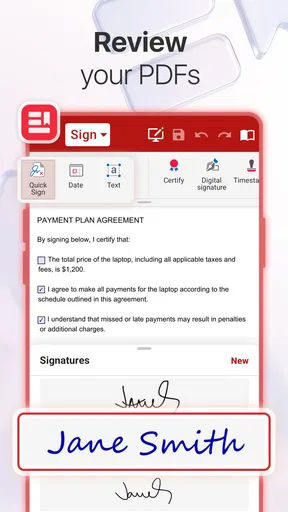
PDF annotation is particularly suited to short, clear actions: highlight a passage, leave a comment, or sign a document when that is appropriate. I would zoom in before marking a small area and look over the finished page to make sure the annotation is attached to the intended text. A signature feature can save a trip to a computer, but it does not decide whether a particular document or process accepts an electronic signature; that is something to check with the person or organisation requesting it.
Choosing between an all-in-one suite and familiar alternatives
Compared with using separate word-processing, spreadsheet, and PDF apps, the main advantage is fewer context switches. A single suite can be easier when your tasks are mixed and occasional, and when you would rather not hunt through your phone for the right tool. The alternative can be stronger if you already rely on a dedicated office ecosystem: its own apps may fit shared files, team habits, or advanced functions more naturally. I would choose based on the files and people I work with, not simply on how many tools appear in one app.
Cloud access is convenient, but it is worth being deliberate about where a file lives. If you connect a cloud service, confirm that you are opening the right account and folder before editing; a document stored in one place may not be the same copy as an attachment saved elsewhere. When the work is important, I also like to reopen the finished file and check that the change is present. That simple habit is more dependable than assuming that a document has synced just because it was visible on screen.
There is also a difference between “I can do this on my phone” and “this is the best place to do it.” A compact screen is excellent for a quick approval or correction, but it makes comparing several pages, arranging a complex layout, and entering long passages slower. If most of your work involves creating polished documents from scratch, I would keep a desktop suite in the workflow and use the mobile app as a companion rather than expecting it to replace the computer.
There are optional purchases, so the free starting point should not be confused with every tool necessarily being included at no additional cost. I would first identify the exact task I need—such as editing a particular file or using a PDF function—and check the available in-app options before building a routine around it. That is especially sensible if you only need office tools occasionally: a paid feature may be worthwhile for frequent use, while a free or already-installed alternative could be enough for a one-off job.
The high install count and large number of ratings make this a well-established choice, not a guarantee that every feature will suit every person. I would judge it by trying a representative file from my own work: a document with the formatting I care about, a spreadsheet I need to inspect, or a PDF I regularly annotate. That short test reveals more than a generic feature list, because it shows whether the layout, editing controls, and file handling fit the way I actually work.
For privacy-sensitive or business-critical documents, I would also follow my employer’s or client’s rules rather than treating a phone app as automatically approved for every file. Keep access to the relevant account under control, use the device’s available protection, and avoid editing a shared document casually if you are unsure which copy or version others will see. Those are sensible habits with any mobile office tool, and they matter more than convenience when a file contains confidential information.
Features That Pack a Punch
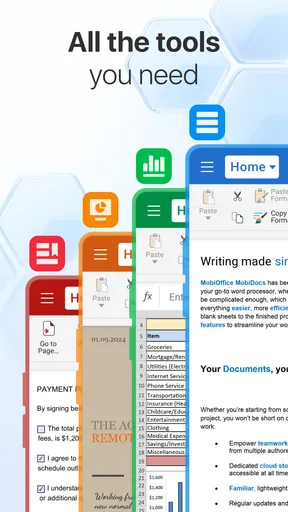
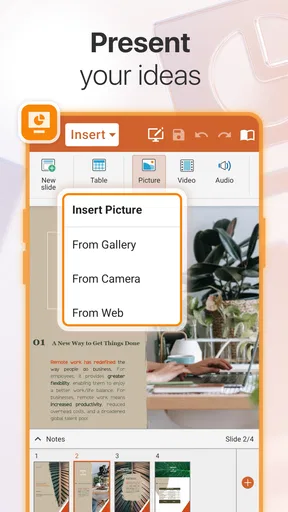
First off, the versatility of MobiOffice: Word, Sheets, PDF is impressive. It covers all the essentials you’d expect in a suite—word processing, spreadsheets, and PDF tools—but there’s more to it than meets the eye.
Word Processing
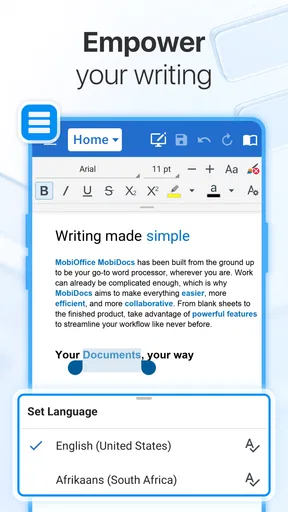
Let’s talk about the word processor. It’s sleek, intuitive, and packed with features you’d typically find in a desktop application. You can easily create, edit, and format documents with a few taps. The interface is user-friendly, which means less time figuring things out and more time getting things done. Plus, the auto-save feature is a lifesaver—no more losing work because of a dead battery!
Spreadsheets
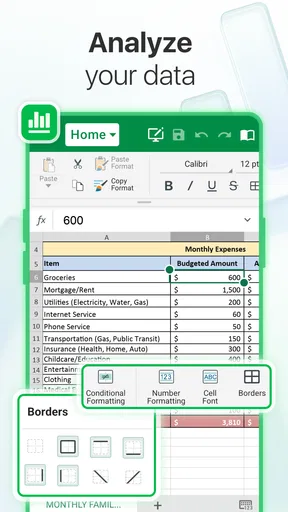
Next up, spreadsheets. If you’re like me and spreadsheets make your head spin, the app’s layout makes it a bit less daunting. It supports a wide range of functions and formulas, and you can even create detailed graphs and charts. Sharing spreadsheets with colleagues is a breeze, and real-time collaboration means you can work together without being in the same room.
PDF Tools
The PDF capabilities are really where this app shines. Whether you need to convert documents to PDF or annotate existing files, MobiOffice has got you covered. The editing tools are robust, allowing you to highlight, underline, and add comments with ease. And if you need to sign a document, you can do it right on your phone with the signature feature.
Cloud Integration and Accessibility
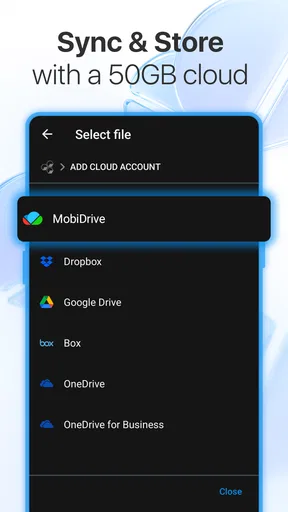
One of the best things about MobiOffice is its seamless cloud integration. You can easily connect to services like Google Drive, Dropbox, and OneDrive, making it simple to access your documents no matter where you are. This accessibility is crucial for anyone who’s constantly on the move.
User Experience
The user experience is top-notch. The app runs smoothly without any noticeable lag, and the design is clean and modern. Navigation is straightforward, and everything is where you’d expect it to be. It’s clear that a lot of thought went into the app’s usability.
“Having MobiOffice on my phone feels like carrying a mini office in my pocket.”
Security
In today’s world, security is a big deal, and MobiOffice doesn’t disappoint. It offers strong encryption to protect your documents, and you can even set up biometric authentication for an extra layer of security. Knowing that my files are safe gives me peace of mind.
What I would use it for—and where I would stop
My strongest recommendation is for people whose document needs are varied but usually brief. It is convenient to have text editing, spreadsheets, and PDF markup close at hand when a file arrives unexpectedly. I would not choose a phone as my main workspace for a lengthy report or a workbook that needs careful auditing, though. The smaller screen changes the nature of the task: it is easier to review and respond than to build something complicated from the ground up.
That distinction also helps answer whether it can replace familiar office software. For occasional edits and cross-format convenience, an all-in-one app can be simpler than installing and switching among several tools. If your team already shares work through a particular office platform, or you depend on its specialised features, using that platform’s apps may reduce friction. I see MobiOffice as a useful mobile companion, not an automatic reason to abandon a setup that already works.
My final recommendation
All in all, MobiOffice: Word, Sheets, PDF is a solid choice for anyone needing a reliable office app on their mobile device. It combines functionality with ease of use and throws in some excellent features that enhance productivity. Whether you’re a student, a professional, or just someone who needs to manage documents on the fly, this app is definitely worth checking out.
So, if you're looking to streamline your work process and have all your documents at your fingertips, give MobiOffice a try. You won’t regret it!
I would start with one ordinary task rather than moving my whole working routine over at once: open a document I know well, make a small change, and check the saved result on the device or service where I expect to find it. Then try the spreadsheet or PDF job you handle most often. If those everyday actions feel comfortable, this app can earn a useful place on your phone; if they feel cramped or require tools you use only on a computer, keep it for quick reviews and choose a desktop or specialist app for the heavier work.
Pros
- User-friendly interface for easy navigation.
- Supports multiple file formats seamlessly.
- Offline access to files for convenience.
- Regular updates ensure stability and features.
- Integrated cloud support for easy sharing.
Cons
- Free version has limited features.
- Occasional ads interrupt workflow.
- Some features require a premium subscription.
- Syncing issues with large files occasionally.
- Limited customization options for templates.
FAQs for MobiOffice: Word, Sheets, PDF
What features does MobiOffice offer?
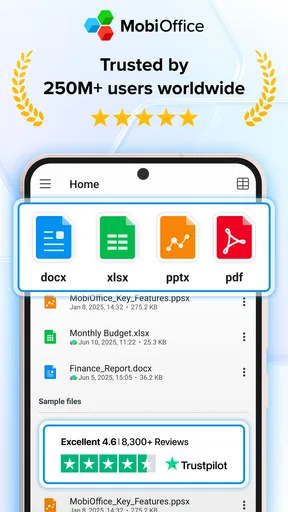
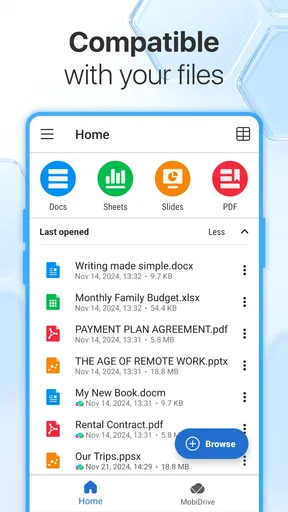
MobiOffice provides a comprehensive suite of tools, including a word processor, spreadsheet editor, and PDF reader. It allows users to create, edit, and share documents seamlessly. The app supports various file formats and offers cloud integration for easy access to your files anytime, anywhere.
Is MobiOffice compatible with both Android and iOS devices?
Yes, MobiOffice is designed to work on both Android and iOS platforms, ensuring a consistent user experience across different devices. This cross-platform compatibility allows users to manage their documents on smartphones and tablets without any issues.
Does MobiOffice require an internet connection for all functionalities?
While an internet connection is needed for cloud storage access and sharing features, MobiOffice allows offline editing of documents. You can create and modify files without being online and sync them later when an internet connection is available.
How secure is my data within the MobiOffice app?
MobiOffice prioritizes user data security by implementing encryption protocols for files stored on the device and during transfer. Additionally, if using cloud services, it adheres to the security standards of those providers, ensuring your documents remain safe and private.
Are there subscription costs associated with MobiOffice?
MobiOffice offers a free version with essential features. However, for advanced functionalities like cloud integration and premium templates, users can opt for a subscription plan. Pricing details can usually be found within the app or on the official website, offering flexible options to suit different needs.


